-
![]()
Joey Albert
Joey has been involved with tech ever since she joined the EaseUS editor team in March 2011 and now she is a senior website editor. She is good at solving various issues, such as video downloading and recording.…Read full bio -
Jean has been working as a professional website editor for quite a long time. Her articles focus on topics of computer backup, data security tips, data recovery, and disk partitioning. Also, she writes many guides and tutorials on PC hardware & software troubleshooting. She keeps two lovely parrots and likes making vlogs of pets. With experience in video recording and video editing, she starts writing blogs on multimedia topics now.…Read full bio
-
![]()
Gorilla
Gorilla joined EaseUS in 2022. As a smartphone lover, she stays on top of Android unlocking skills and iOS troubleshooting tips. In addition, she also devotes herself to data recovery and transfer issues.…Read full bio -
![]()
Rel
Rel has always maintained a strong curiosity about the computer field and is committed to the research of the most efficient and practical computer problem solutions.…Read full bio -
![]()
Dawn Tang
Dawn Tang is a seasoned professional with a year-long record of crafting informative Backup & Recovery articles. Currently, she's channeling her expertise into the world of video editing software, embodying adaptability and a passion for mastering new digital domains.…Read full bio -
![]()
Sasha
Sasha is a girl who enjoys researching various electronic products and is dedicated to helping readers solve a wide range of technology-related issues. On EaseUS, she excels at providing readers with concise solutions in audio and video editing.…Read full bio
Content

Myra
Updated On 06/18/2026
0 Views |
0 min read
Echoey or reverby audio can ruin even the best-edited video, turning clear dialogue into a hollow mess that distracts viewers. Whether you're editing gameplay footage, interviews, or vlogs, learning how to remove reverb or echo in DaVinci Resolve gives you professional audio polish. This guide walks through free and Studio methods, prevention tips, and quick online alternatives to make your sound crystal clear.
What Causes Reverb/Echo in Your Recording
Reverb/echo happens when sound reflects off surfaces and reaches the mic or ears later than the direct sound, creating a sense of space or distinct repeats in the audio.
Physical/Room Causes
- Hard surfaces (bare walls, ceilings, floors, windows, desks) reflect sound instead of absorbing it, so your voice keeps bouncing around the room.
- Large or empty spaces with parallel walls and little furniture let reflections travel longer distances, making the echo more obvious and "roomy."
Acoustic/Audio Setup Causes
- A microphone picking up its own output from speakers (a feedback loop) creates a delayed copy of the sound, heard as an echo.
- Incorrect audio routing (e.g., recording both system audio and mic, or duplicate input paths slightly out of sync) produces a doubled, echo-like signal.
4 Methods to Remove Echo/Reverb in Davinci Resolve
Method 1. Voice Isolation (Quick Free Fix)
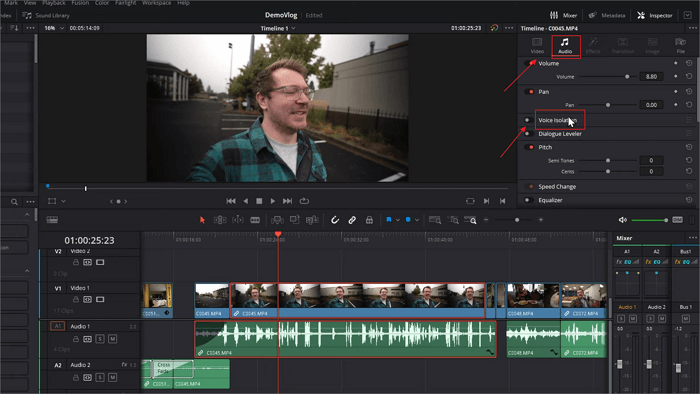
Switch to the Fairlight tab, select your audio clip, and in the Inspector panel, click the Voice Isolation button (red dot) to enable it at 75-100% strength. This AI feature isolates dialogue while suppressing reverb and background noise, providing natural results without plugins—test by playing before/after.
Method 2. De-Reverb Tool (Studio Recommended)
The De-Reverb effect in DaVinci Resolve Studio targets room reflections directly for professional dry audio results.
Step 1. Enter the Fairlight page and select the audio clip.
Step 2. Open Effects, expand Audio FX > Fairlight FX, and drag De-Reverb onto the clip.
Step 3. In Inspector, set Amount to 30-40%, adjust Sensitivity to detect echoes, and Tail Length for room size.
Step 4. Listen on multiple speakers and adjust for balance.
Method 3. EQ Adjustments
EQ lets you manually target and reduce the frequencies that make reverb sound hollow and distant, available in every DaVinci Resolve edition.
Step 1. Go to Fairlight, select the clip, and turn on EQ from Effects Library > Audio FX > Fairlight FX to the clip.
Step 2. Enable high-pass filter in Inspector, set to 80-100Hz, and roll off the steep.
Step 3. Add narrow cuts (Q=2-4) in the 300Hz-3kHz range by 3-6dB; sweep while soloing to find peaks.
Method 4: Noise Gate
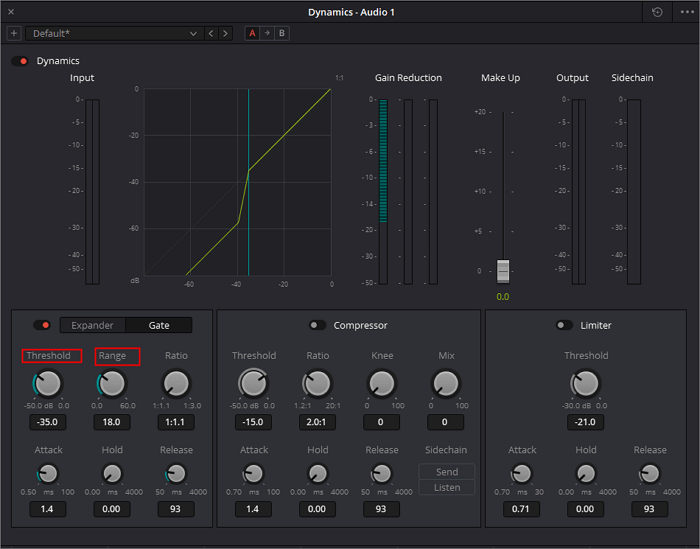
Noise Gate silences low-level reverb tails and background noise during pauses, serving as an effective cleanup tool in all DaVinci Resolve editions.
Step 1. Switch to the Fairlight page and select your audio clip on the timeline.
Step 2. Open the Mixer panel, double-click the Dynamics section to expand it, then enable Gate by clicking its title.
Step 3. Set Threshold to around -30dB (adjust so noise cuts off but voice passes), Range to 60dB for full reduction, and Attack to 5-10ms.
Step 4. Fine-tune Hold (50-500ms) and Release (100-700ms) while playing to avoid choppy audio, then bypass to compare.
Advanced Tips to Avoid Reverb or Echo
Prevent echo and reverb upfront during recording with easy room adjustments and mic positioning to cut down on editing time later. These tips suit video editors, podcasters, gamers, and anyone capturing voice audio.
Room Treatment
Hang heavy blankets, curtains, or moving blankets on walls, ceilings, and floors to absorb reflections from hard surfaces like drywall or tile. Fill empty spaces with furniture, pillows, rugs, or even record inside a closet for natural dampening.
Microphone Technique
Position the mic 6-12 inches from your mouth to prioritize direct sound over reflections, and use a directional pattern, such as cardioid, to reject off-axis noise. Add a pop filter to cut plosives, and lower the gain to boost the signal-to-noise ratio.
Equipment and Setup
Record in smaller, furnished rooms over large empty ones; avoid parallel walls by angling surfaces or using gobos (portable absorbers). Opt for dynamic mics over condensers for less reverb pickup, and disable speaker monitoring to prevent feedback loops.
Software and Monitoring
Use closed-back headphones for monitoring, set input levels properly (not clipping), and test recordings with a clap to check decay time. For multiple mics, route through a mixer to sync signals and avoid phase-induced echo.
Bonus: Remove Echo/Reverb Online in a Single Click
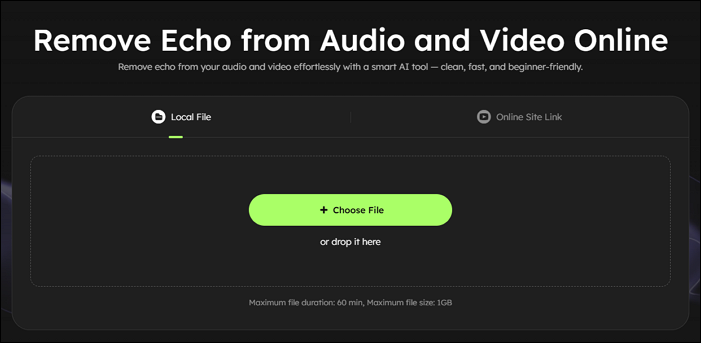
EaseUS Echo Remover offers a browser-based, AI-driven solution for instantly stripping echo and reverb from audio or video uploads. It excels in AI analysis to detect and reduce room reflections, preserving natural voice clarity better than basic equalizers. Go to the official site, upload your audio/video file, or paste the YouTube link, and the AI handles the rest.
 EaseUS Echo RemoverInstant echo remover, click to clean!
Powered by Advanced AI
Besides the key features of echo remover and reverb remover, it supports vocal and instrumental separation that can isolate pure vocals for singing practice, remixing, or karaoke creation. This makes it useful not only for fixing the room echo but also for producers and learners who want a dry vocal track to study phrasing, timing, and pronunciation more clearly.
Conclusion
Mastering how to remove reverb in DaVinci Resolve equips you with pro-level audio skills, from free Voice Isolation to Studio De-Reverb and beyond. Start with Voice Isolation or De-Reverb. Then refine the audio via EQ and Noise Gate for crystal-clear dialogue that elevates your videos. Apply prevention tactics during recording and use online tools like EaseUS Echo Remover for instant fixes when needed.

FAQs
What is the difference between echo and reverb in audio?
- Echo is a clearly delayed repeat of the sound, like shouting in a canyon and hearing it come back as a separate event.
- Reverb is many tiny reflections arriving so close together that they blur into a continuous tail, making audio sound distant, hollow, or "in a big room."
Can I remove reverb in the free version of DaVinci Resolve?
Voice Isolation works excellently in the free edition for quick reverb reduction on dialogue.
Can I remove reverb from pre-recorded gameplay audio?
Yes, upload your audio to EaseUS Online Reverb Remover, and it will apply AI analysis to remove reverb from your pre-recorded audio for a clear voice.
How do I prevent feedback echo during live recording?
Use headphones instead of speakers and enable direct monitoring in your audio interface.